File Explorer Tweaks
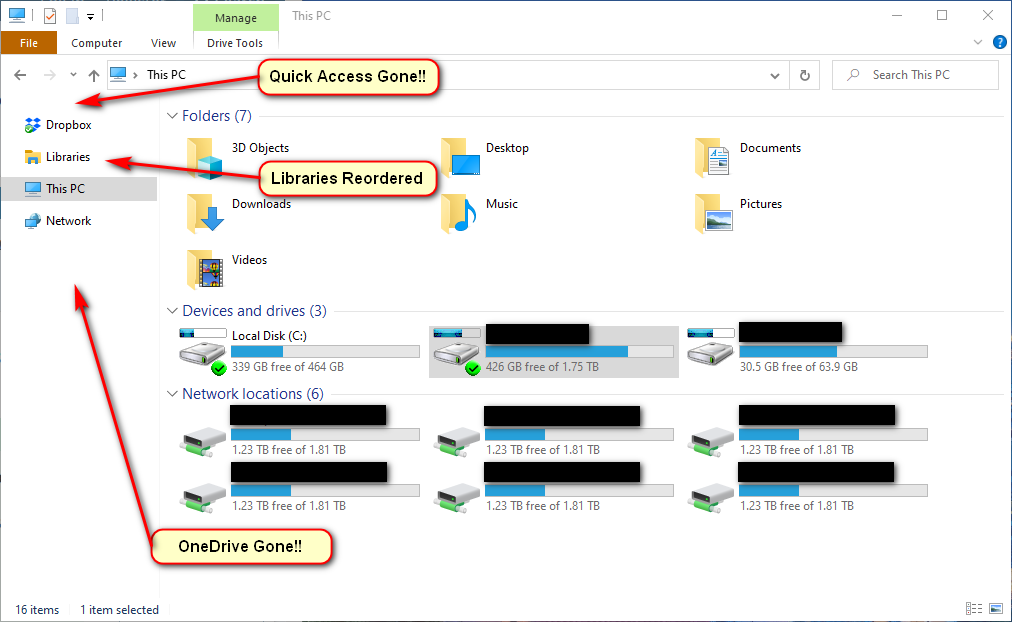
1. Disable & Remove Quick Access
How to Disable Quick Access in Windows 10 File Explorer
- Open File Explorer and go to View tab > Options > Change folder and search options.
- Choose This PC from the top drop-down menu.
- Uncheck both boxes under the Privacy section.
- Press Clear to clear all of your Quick Access history. (optional)
How to: Removing Quick Access from Windows 10 File Explorer
HKEY_LOCAL_MACHINE\SOFTWARE\Microsoft\Windows\CurrentVersion\Explorer
Add DWORD HubMode 1
The .reg files below will modify the DWORD value in the registry key below.
Reorder “Libraries” folder above “This PC”
https://www.tenforums.com/tutorials/72210-move-libraries-above-pc-navigation-pane-windows-10-a.html
HKEY_CLASSES_ROOT\CLSID\{031E4825-7B94-4dc3-B131-E946B44C8DD5}
Add DWORD SortOrderIndex
Use one of the below numbers to complete the DWORD Entry:
54 (hex) = Below This PC
42 (hex) = Above This PC
Remove OneDrive
HKEY_CLASSES_ROOTCLSID{018D5C66-4533-4307-9B53-224DE2ED1FE6}
Add DWORD System.IsPinnedToNameSpaceTree 1
Remove DLNA Media Servers
Remove HKEY_LOCAL_MACHINE\SOFTWARE\Microsoft\Windows\CurrentVersion\Explorer\MyComputer\NameSpace\DelegateFolders{289AF617-1CC3-42A6-926C-E6A863F0E3BA}
Remove HKEY_LOCAL_MACHINE\SOFTWARE\Wow6432Node\Microsoft\Windows\CurrentVersion\Explorer\MyComputer\NameSpace\DelegateFolders{289AF617-1CC3-42A6-926C-E6A863F0E3BA}
I’m Scott Larson. I’ve been a technology enthusiast since I was 10 years old, and today I repair computers and help people solve everyday tech challenges. I write about creative and technical projects along with occasional philosophical musings. If this article was of interest to you, sign up for my newsletter and receive notifications when new articles are published.
Looking for more content on tech, privacy and right-to-repair?